Koncert now has a turnkey integration with Gong, which allows users to import a call list(s) from Gong into the Koncert portal during data migration with no loss of data.
To build a tight integration with Gong, the following settings must be performed in the Koncert » Administration »Third Party Integrations tab.
Important Notes
- Supported CRMs – Gong Engage integration works only with Salesforce and HubSpot, as Gong supports CRM-based workflows exclusively.
- Call Recording Analysis – Gong Engage analyzes call recordings only for calls longer than 30 seconds.
- Custom Field Limitations – Custom fields and prospect field editing are not supported in Koncert when using the Gong Engage integration.
- Activity Limitations – Activity History, Follow-Up, and Got Referral options are not available with the Gong Engage integration.
For New Salesforce / HubSpot Users integrated with Gong
The Gong will be automatically integrated with your Koncert org during org creation (If selected).
The following pop-up will appear when you log into the Dialers application using your Salesforce or HubSpot credentials.
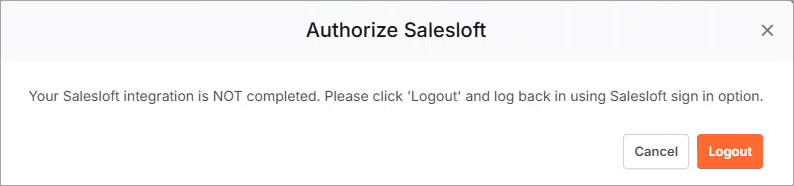
To proceed, please log out and log back in using your Gong credentials. Once logged in, the integration is instantly authorized—no extra steps required and you will be able to access the Koncert application for Gong lists.
For New Standalone Org integrated with Gong
Gong is automatically authorized during org creation once log in using your Gong credential.
For Admins
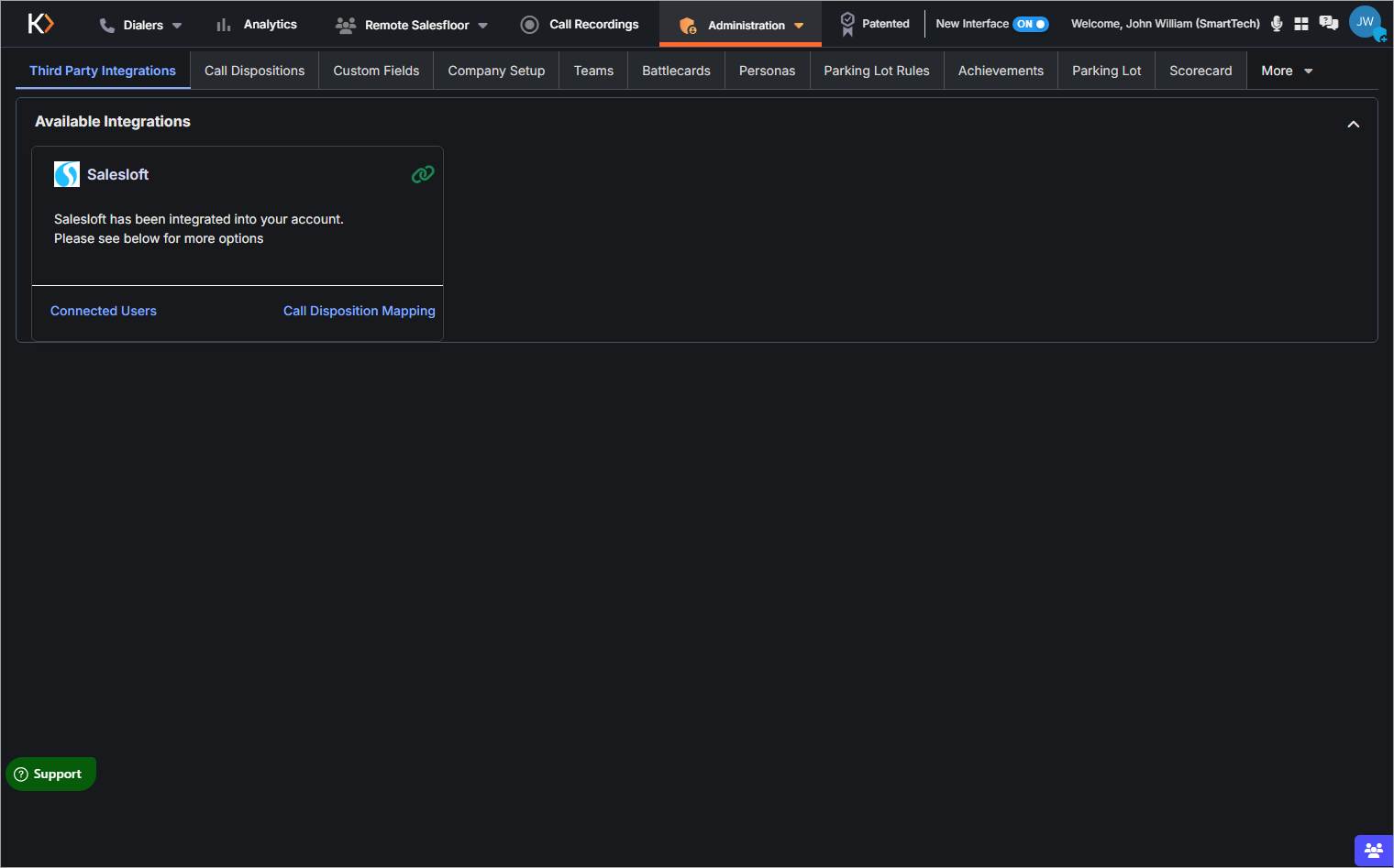
You can view this integration under the Administration » Third Party Integrations tab in the Koncert Dialers portal.
For Users and Managers
You can view this integration under the Settings tab in the Koncert Dialers portal.
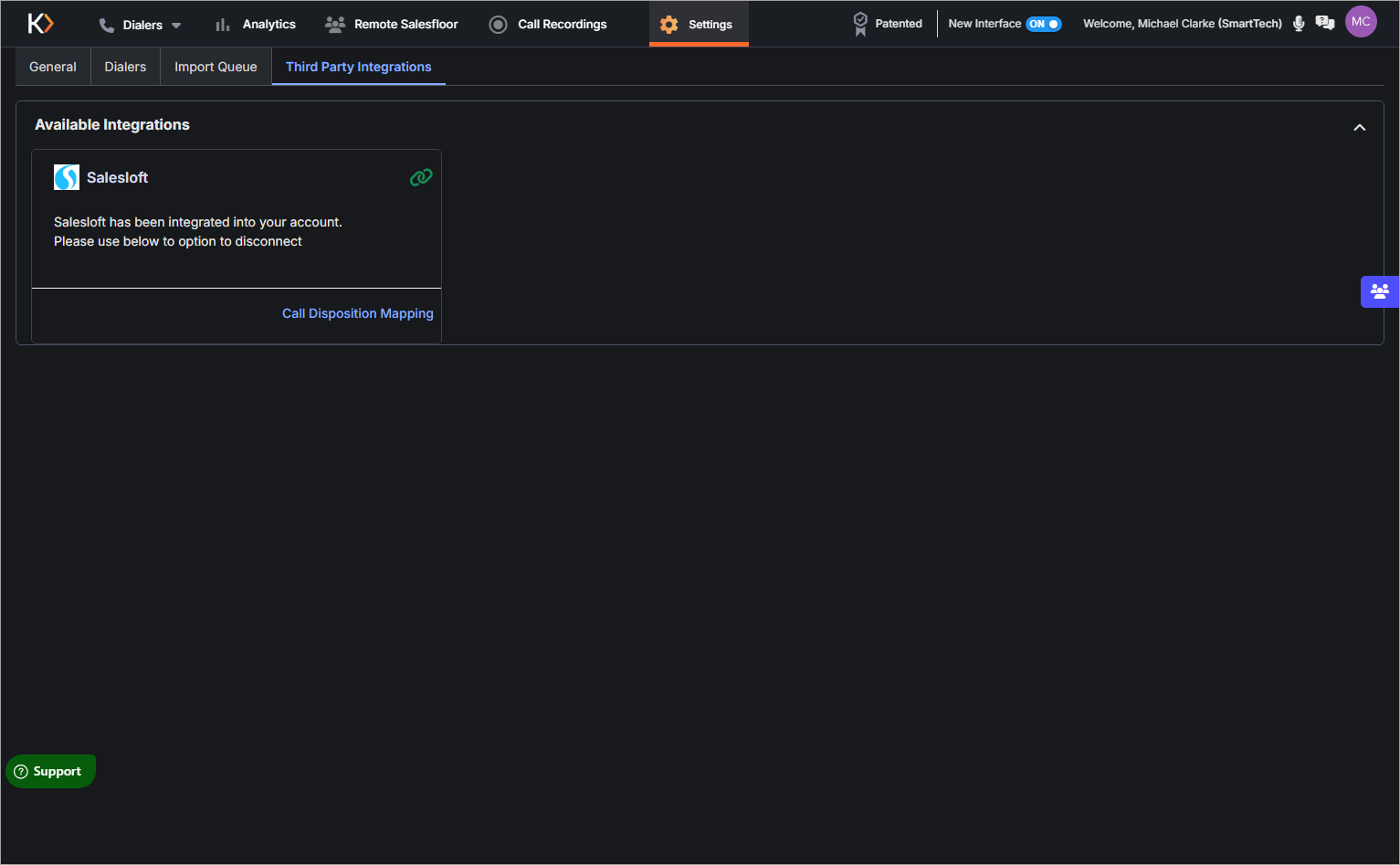
The Connected Users button will be enabled to allow you to proceed with the setup.
NOTE: The Connected Users button will be enabled only for the Manager and Admins.
Connected Users
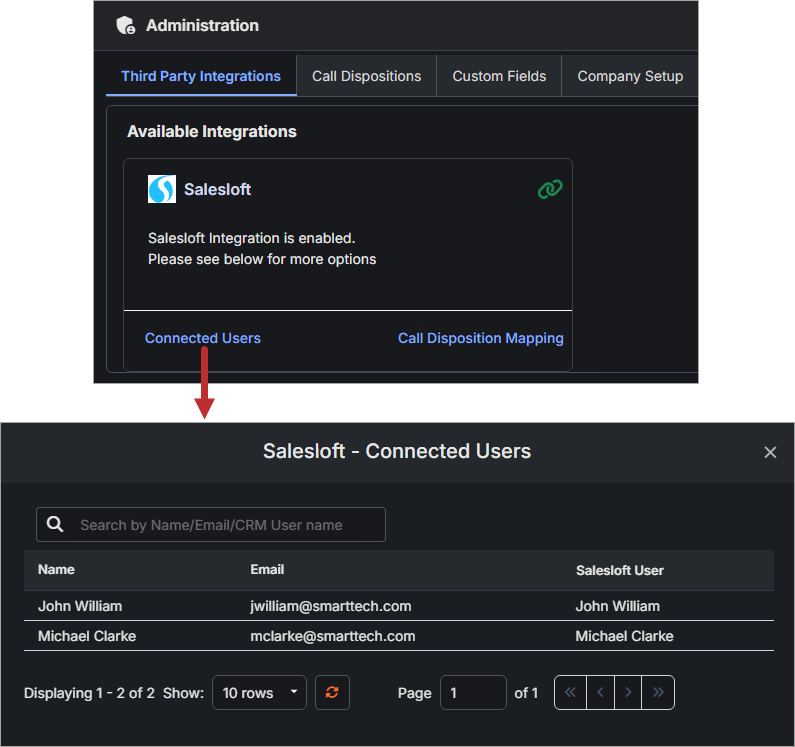
Admins and Managers can view the list of users who have authorized Gong by clicking the 'Connected Users' button as shown below.
For Existing Users
Authorize Gong
- For authorization logging into the Koncert portal (either standalone or CRM).
If the Gong is selected as Sales Engagement Platform during Org creation, an Authorize Gong popup will be displayed, when accessing the Koncert portal.
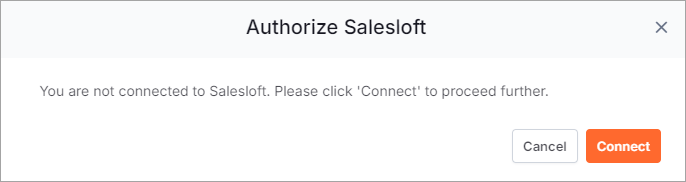
Click the Connect button.
(Or)
Alternatively, you can perform the below steps.
For Admins: Navigate to the Administration » Third Party Integrations tab and click on the Authorize button.
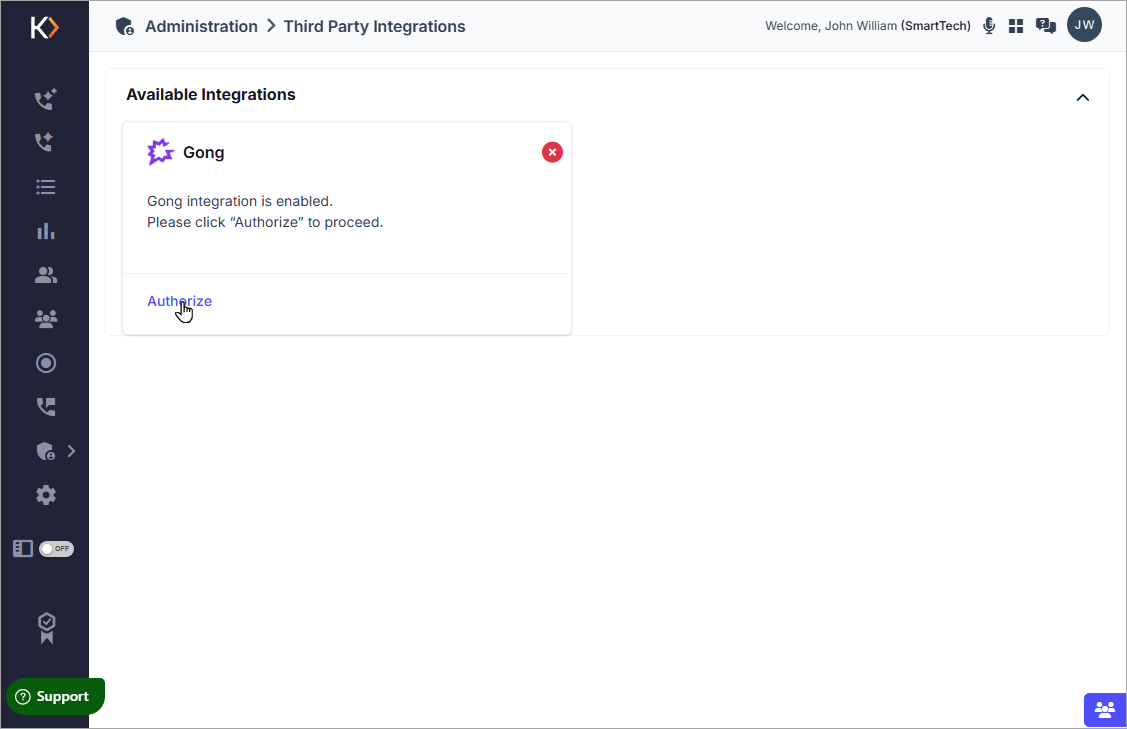
For Users and Managers: Navigate to the Settings » Third Party Integrations tab and click on the Authorize button.
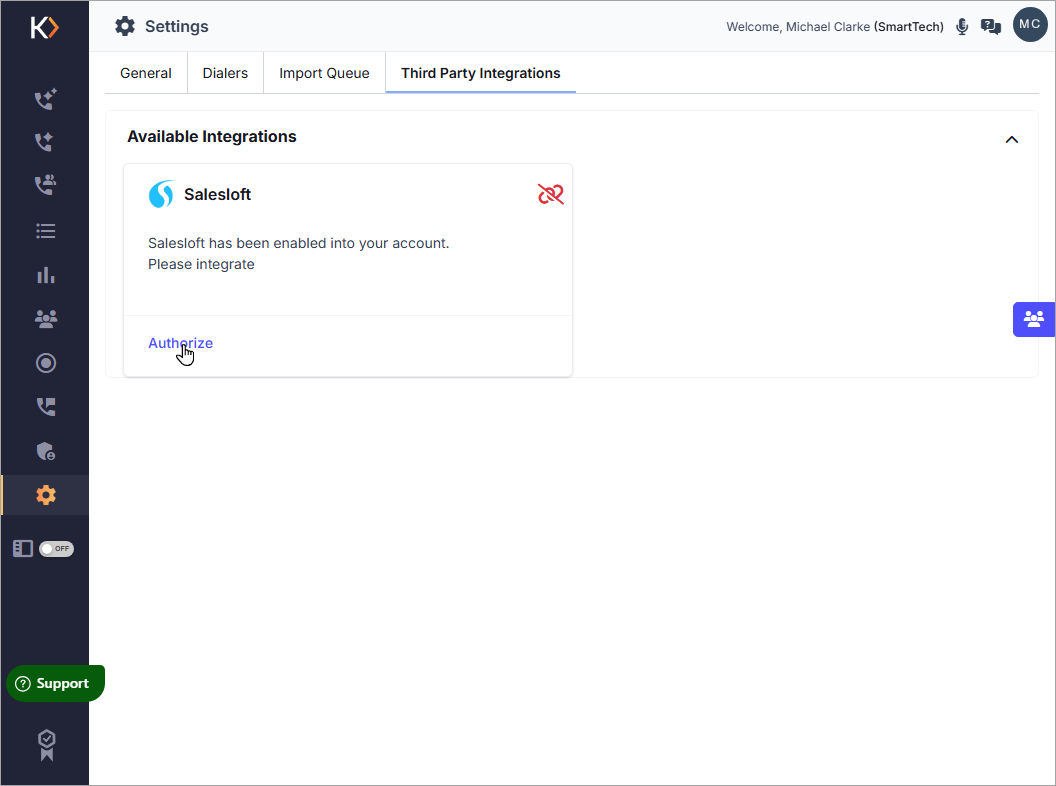
- Upon clicking the Authorize or Connect button the Gong Login page will pop up to authorize the use of your account.
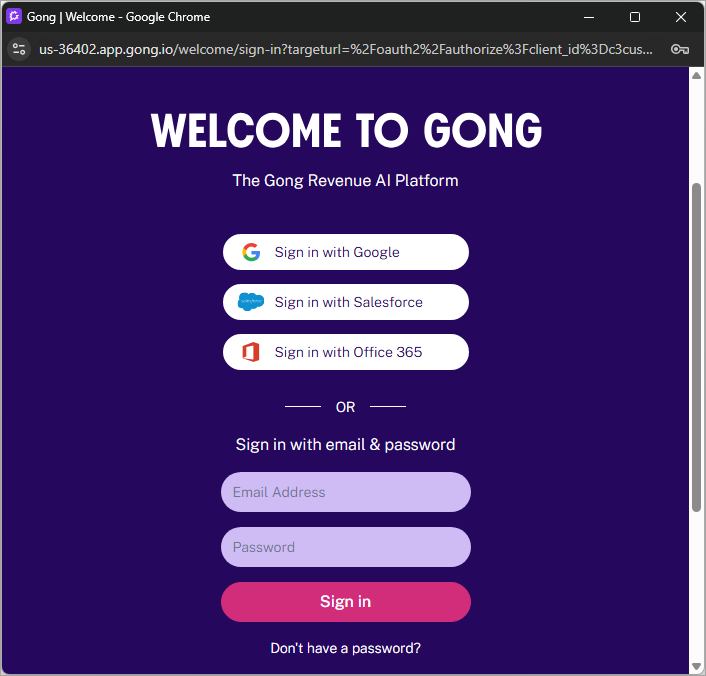
- Login with your credentials. After entering your credentials and logging in, a popup window will appear, requesting permission for Koncert to access your Gong data. Click the Allow button to grant access.
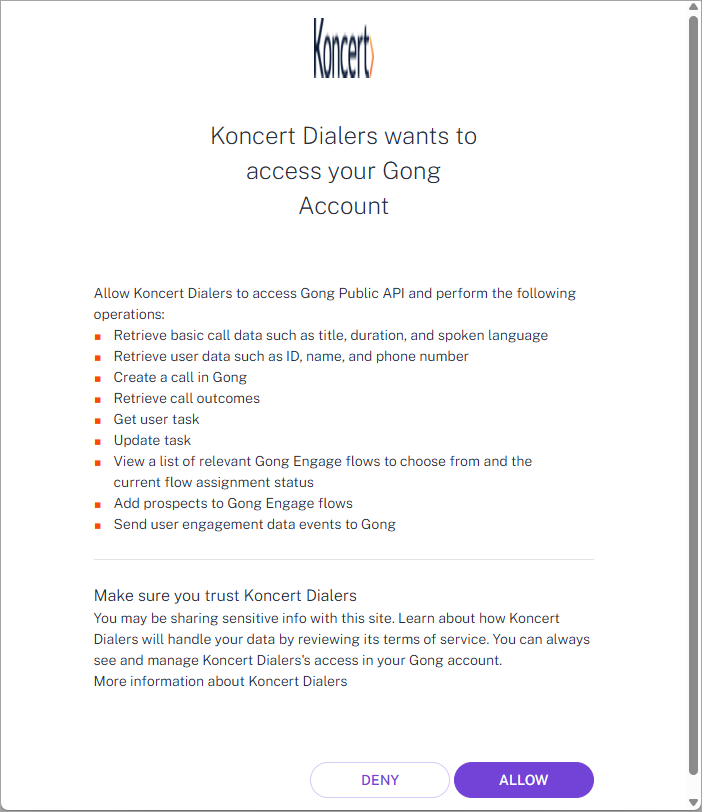
After successful authorization, the below confirmation message will be displayed. Click Close.

- The Authorize button will be hidden from your view. Also, the Green Link icon will be made visible indicating that Gong has been successfully integrated with Koncert.
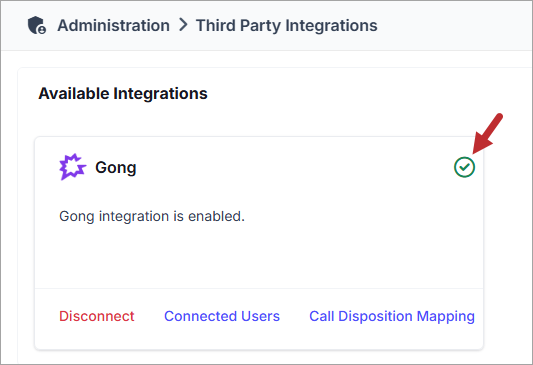
The Connected Users and Call Disposition Mapping buttons will be enabled to allow you to proceed with the setup.
NOTE: The Connected Users button will be enabled only for the Manager and Admins.
Connected Users
Admins and Managers can view the list of users who have authorized Gong by clicking the 'Connected Users' button as shown below.
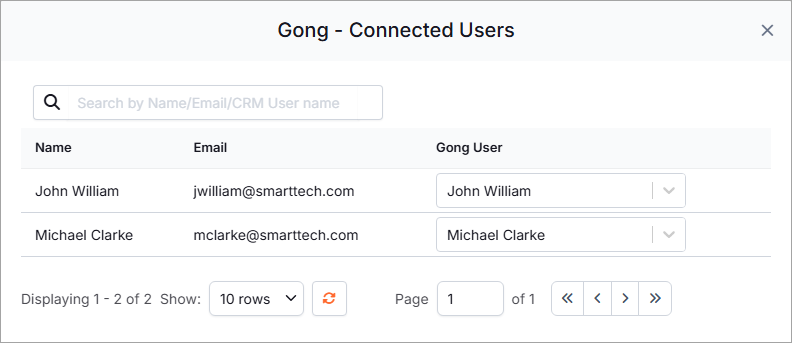
Disconnect
You can disconnect the Gong integration at any time by clicking the Disconnect link. Upon clicking, the below confirmation message will be displayed.
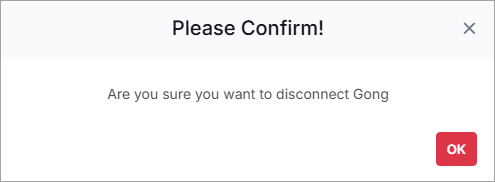
Click OK to disconnect the integration or click the Close  icon to cancel the process.
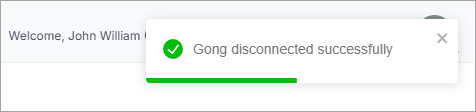
Upon clicking OK, the message Gong disconnected successfully will be displayed.
Related Article
How to map dispositions to Gong?
Please contact Koncert Support for any questions at support@koncert.com or 603-952-2505.
NOTE: The information provided here is for informational purposes only and should not be considered as a legal advice. Please consult your legal counsel regarding compliance with relevant laws.
Was this article helpful?
That’s Great!
Thank you for your feedback
Sorry! We couldn't be helpful
Thank you for your feedback
Feedback sent
We appreciate your effort and will try to fix the article