Mapping the dispositions ensures that calls tracked in Koncert are accurately reflected in Gong, improving the efficiency of your workflow. This step helps streamline reporting and synchronization of activities between the two platforms.
Steps to Map Koncert Call Dispositions with Gong Call Dispositions
Login to Koncert:
After creating the Gong organization, log in to Koncert. If one or more Gong dispositions are not mapped, a banner message will appear, indicating that call dispositions are not mapped.

Once all dispositions are mapped, the banner will no longer appear.
Access the Call Disposition Mapping:
Click on the banner message, which will redirect to the Third Party Integrations tab.
(or)
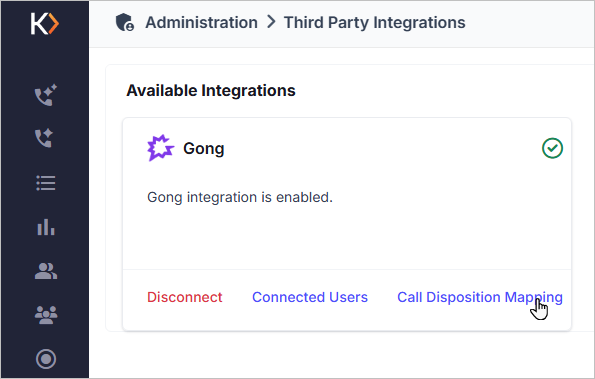
Alternatively, you can manually navigate to Administration » Third Party Integrations, then click on the Call Disposition Mapping link.
Upon accessing the mapping screen for the first time, all call dispositions will appear blank.
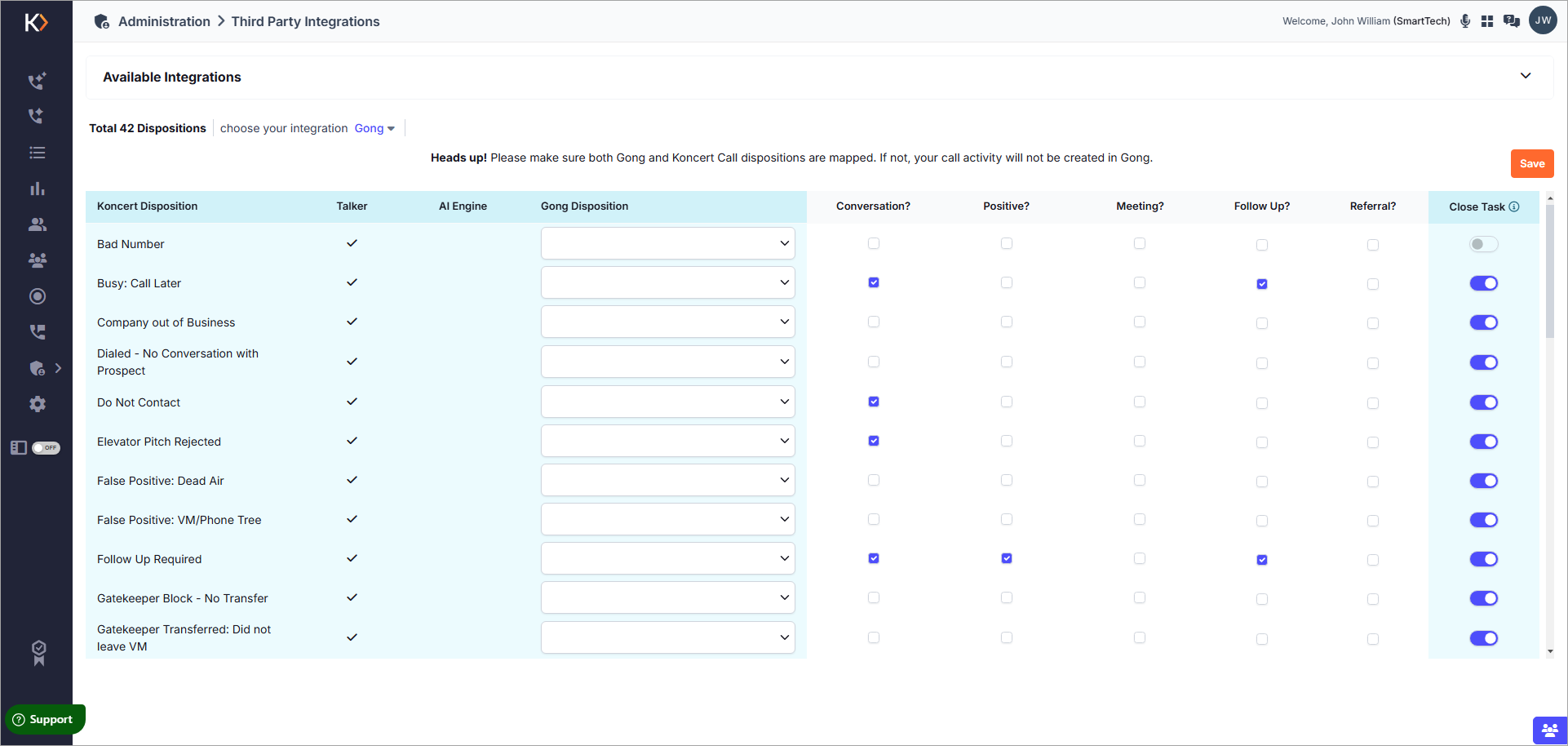
Map the necessary Koncert Call Dispositions to the respective Gong Call Dispositions for proper synchronization. It is a mandatory process.
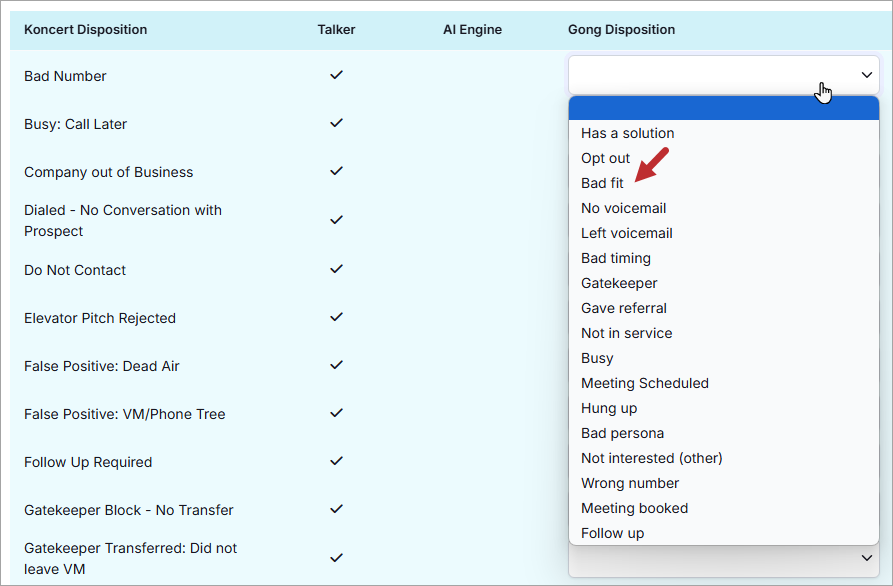
Configuring Call Disposition Options
Each Koncert Call Disposition can be configured with the following options to control how the disposition is handled and synchronized with Gong:
Conversation? – Enable the checkbox to count the disposition as a conversation.
Positive? – Enable the checkbox to count the disposition as a positive connect.
Meeting? – Enable the checkbox to mark the disposition as a meeting.
Follow Up? – Enable the checkbox to count the disposition as a follow-up.
Referral? – Enable the checkbox to identify the disposition as a referral.
Koncert Snooze – Enable the checkbox to mark the prospect as Snoozed in Koncert. A Snoozed prospect will not be dialed again until the Snooze is manually removed.
Close Task – Enable this option to automatically move the prospect to the next step in the Gong flow when a disposition with Close Task enabled is selected. If the prospect is already on the last step, they will exit the flow.
Review the available options and adjust the checkboxes as needed to align with your workflow.
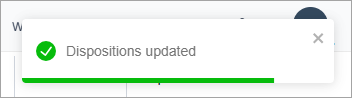
After making the required changes, click Save to apply the disposition mappings and option settings. A Disposition Updated confirmation message will appear.
After making the necessary changes, click Save to save your settings. A confirmation message Disposition Updated will appear.
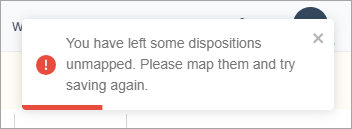
If you left some dispositions unmapped the following alert will appear.
Activity Creation in Gong
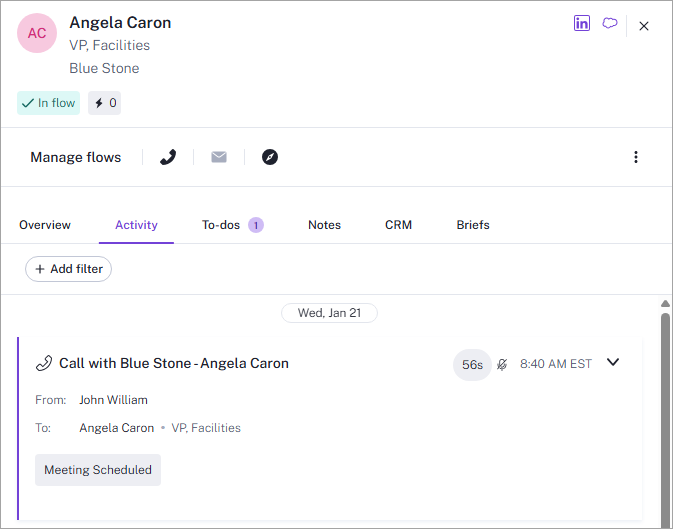
Once a disposition is selected in the Call Disposition window, an activity will be automatically created in Gong based on the mapped dispositions. The activity will appear on the Gong » Activities page, reflecting the selected disposition.
Please contact Koncert Support for any questions at support@koncert.com or 603-952-2505.
NOTE: The information provided here is for informational purposes only and should not be considered as a legal advice. Please consult your legal counsel regarding compliance with relevant laws.
Was this article helpful?
That’s Great!
Thank you for your feedback
Sorry! We couldn't be helpful
Thank you for your feedback
Feedback sent
We appreciate your effort and will try to fix the article